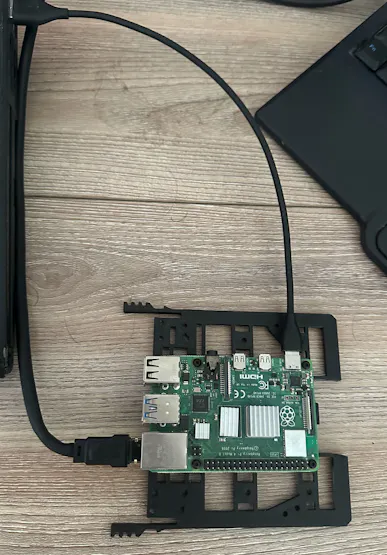
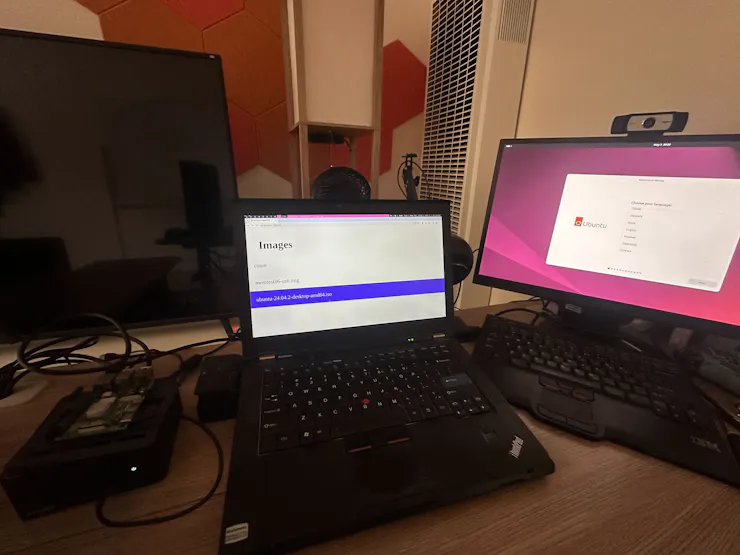
I wanted to be able to drag-and-drop ISOs & OS images into a web browser & have them served over magically USB. I was thinking of trying it out on a Raspberry Pi 4B.
I already have a containerized application, which will, ideally, be used like this:
The premise of this application is the g_mass_storage kernel module, which allows you to use the USB-C port on the Raspberry Pi 4B (in my case) as a storage device.
I had wanted to try Pantacor for deploying this, since I had heard it makes deploying Docker containers to embedded devices pretty seemless.
I started by downloading the Pantacor image for the Raspberry Pi 4B:
I have my SD card, /dev/mmcblk0, as well as my Pantacor image, rpi64-5.10.y.img.gz:
After burning the image, I had needed to add dtoverlay=dwc2 to the config.txt file on the boot partition of the SD card. I don’t know what it does. All I know is, g_mass_storage didn’t work without it.
In this case, the boot partition is /dev/mmcblk0p1:
And so I had made a directory, boot, and mounted mmcblk0p1 to it with sudo mount /dev/mmcblk0p1 boot:
Added dtoverlay=dwc2:
And unmounted & synced with sudo umount boot && sudo sync - and then moved the SD card over to the Raspberry Pi.
After moving the SD card over & plugging in the Raspberry Pi 4B, it showed up shortly after in pvr device scan:
And in the “Devices” menu on Pantahub as reliably_helping_frog:
General info provided by Pantahub about the device & repository:
And more detailed info which I thought was nice:
I cloned the repository with pvr, which has a somewhat git-like interface:
Back in the UI directory from earlier, I had re-built my docker image, usbhttp:
And then added it to the reliably_helping_frog repository:
Here was what pvr status looked like after:
To push the changes to the device, I had needed to add, commit:
And post - I’m guessing they went with post because it does both a local push & remote pull:
The above is revision #2, because I had mistakenly run pvr add, without any arguments, then pvr commit & pvr post. This created a new revision, though no files were changed.
We can see the second revision there in pantahub:
And we can visit the device in the web browser:
Since you’ve made it this far, here’s where the fun starts.
When we drag-and-drop a file, we copy it to the back end. Nothing fancy.
When we select an image, however, we need to tell Pantavisor to how to load g_mass_storage with a parameter. We do that by adding the libcomposite & usb sections to bsp/drivers.json in our reliably_helping_frog repository like so:
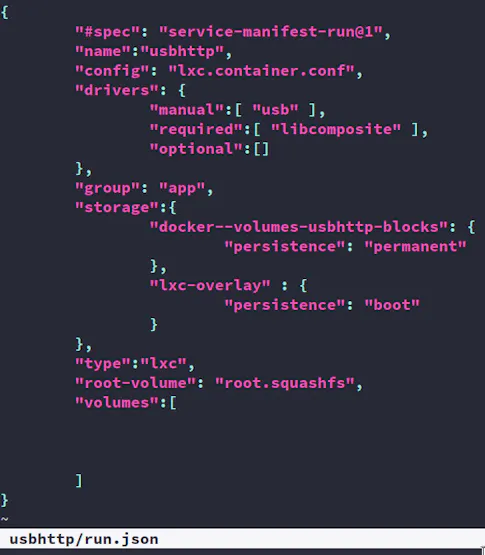
And then marking libcomposite and usb as "required" & "manual", respectively, in our containerized-application's run.json file(which was created by pvr add ... earlier) like this
And then, in the web server, when the end-user selects an image, we write a PUT request for /user-meta/drivers.usb.opts & write it to the socket Pantavisor provides at /pantavisor/pv-ctrl:
We can test the functionality with the Raspberry Pi plugged into a host device like this:
There, we are uploading a file(called count, which counts to 1,000,000) to the UI & verifying that the contents from the newly-created /dev/sdb match.
Now, we can try a more real-world example - booting Ubuntu 24.04:
I’ve plugged in the Raspberry Pi to a seperate computer - unfortunately, it doesn’t boot in time to be detected by the Asus boot menu GUI. We have to boot from the UEFI shell. We run map -r when the Raspberry Pi boots:
`map -r` detects our Raspberry Pi USB device on FS1 - we run cd FS1:\EFI\boot - this is just where all of the bootable executibles happen to be located on the Ubuntu ISO:
And then execute the grubx64.efi:
We can upload any ISO - Windows, Memtester, CentOS, a BSD - you name it - and boot it. Additionally, Pantacor makes this application cross-platform - portable to a Beagle Bone, for example. The Pantacor VPN also allows me to use the web GUI from anywhere.